Command Dot (Free for a Limited Time)
A downloadable tool
⌘ Command Dot ⌘
-Free For a limited time
Your Windows escape hatch on every display.
Windows has a habit of opening games, launchers, dialog boxes, and settings on the wrong screen-especially when you use multiple monitors, a television, a projector, or a virtual display for game streaming.
Command Dot puts a small, customizable control on every display so the tools you need are always within reach.
One Command Dot on every display
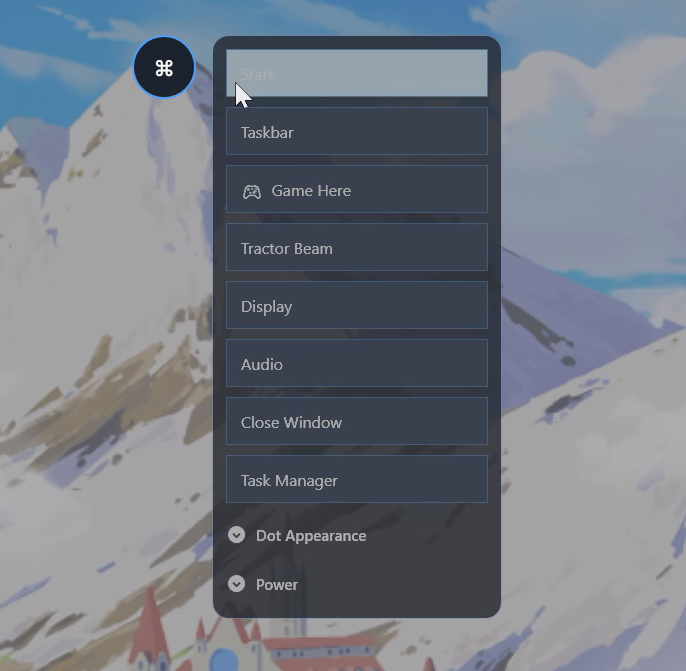
Open Start, reveal the taskbar, launch Task Manager, control windows, change display settings, switch audio outputs, and access guarded power controls from the screen you are actually using. Each Dot remembers its own position, size, and opacity for that display.
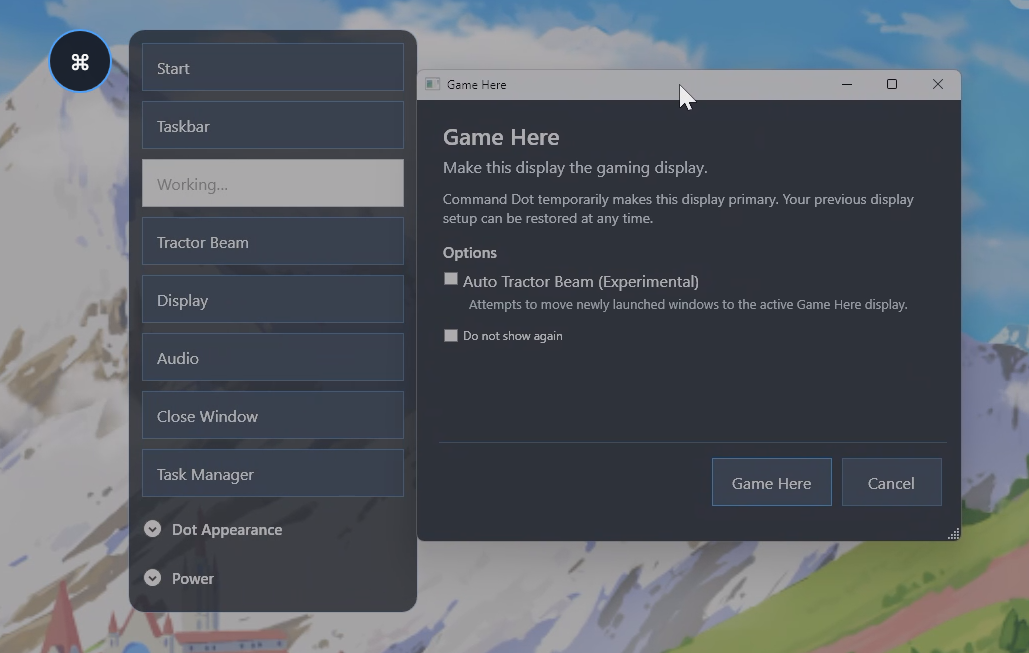
Game Here
Choose the display you are currently using and make it the gaming display. Command Dot temporarily changes the required Windows display state and gives you a clear path to restore your desktop afterward.
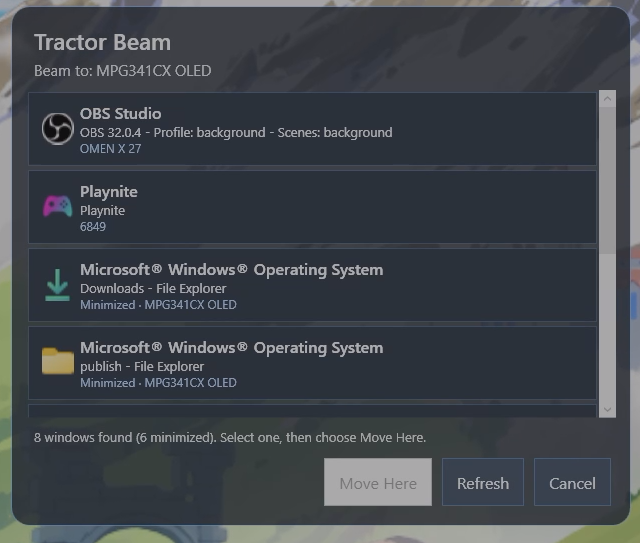
Tractor Beam
Select an open window and bring it to the display in front of you-even when it opened somewhere you cannot see or reach.
Auto Tractor Beam - Experimental
When enabled with Game Here, Command Dot can watch for newly opened user-facing windows and route them toward the active gaming display. This feature is explicitly experimental because Windows applications do not all create and manage their windows the same way.
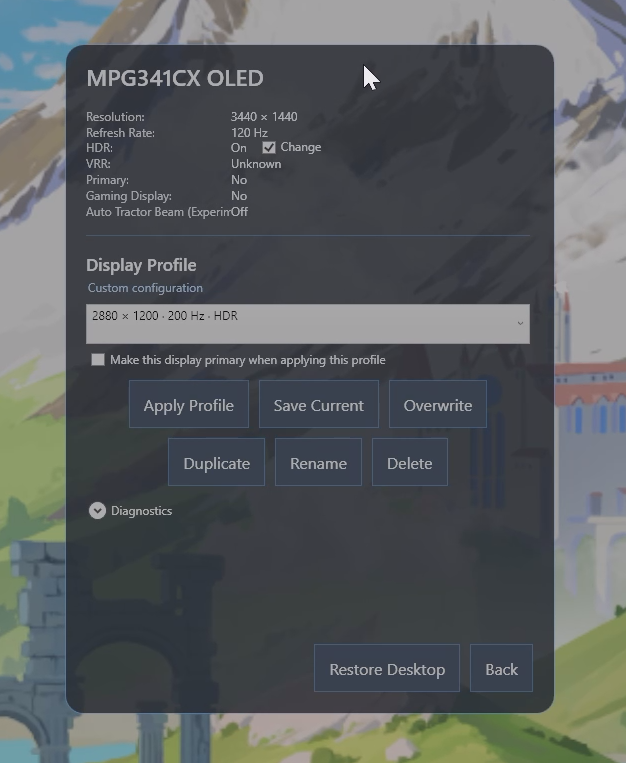
Display profiles
Save and apply display arrangements for different ways you use your PC. Command Dot validates changes and preserves a restoration path when switching gaming displays.
Resolution, refresh rate, HDR, and VRR information
Open Display from the Dot you are using to access the supported resolution and refresh-rate options for that display, manage HDR where Windows exposes it, inspect VRR diagnostics, use display profiles, and access desktop-restoration tools.
Command Dot reports what the Windows display stack makes available. Actual HDR and VRR behavior can still depend on the GPU driver, connection, monitor, game, and launcher.
Audio output switching
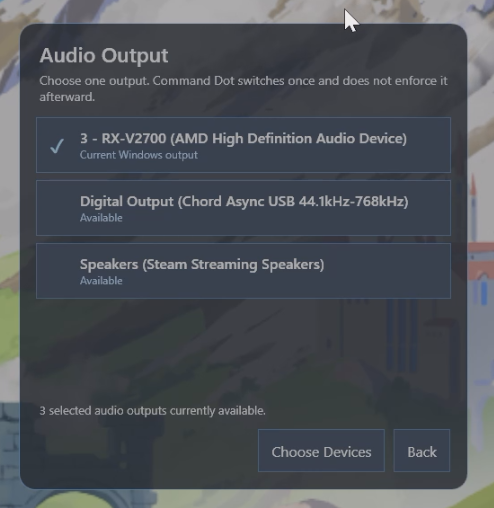
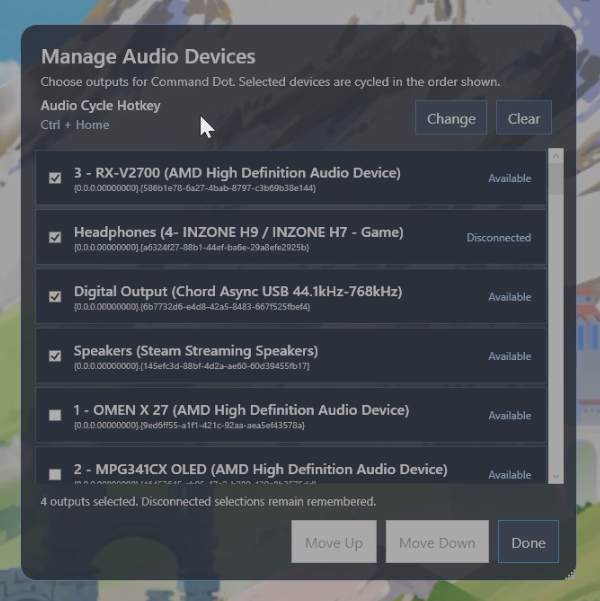
Build a curated list of Windows audio output devices and switch between them without digging through Windows Settings. You can also configure an optional global hotkey to cycle through the selected outputs.
Close Window and guarded Force Quit
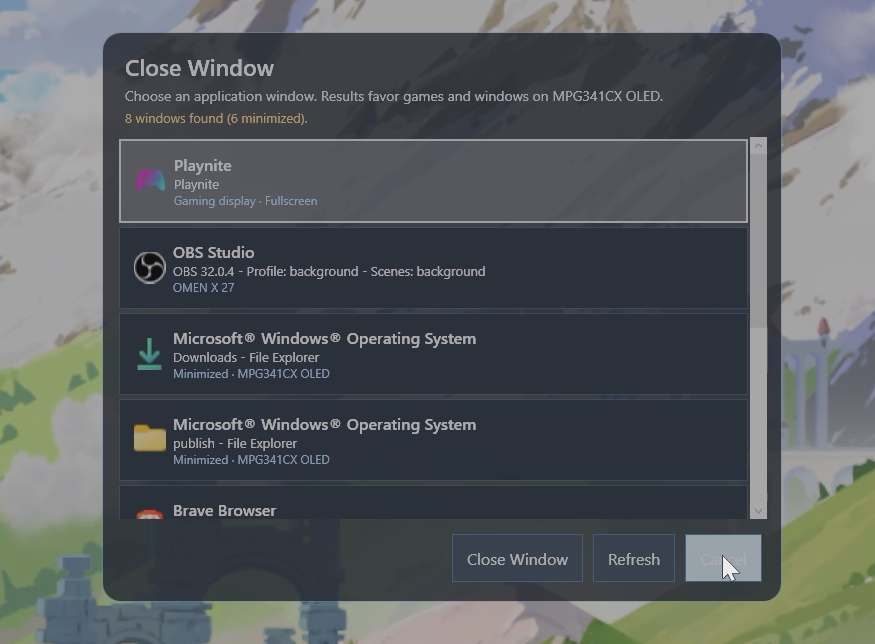
Choose an open application from a touch-friendly list and ask it to close normally. If it refuses, Command Dot can offer a guarded Force Quit path with confirmation.
Start, Taskbar, and Task Manager
Open the Windows Start menu, bring up the taskbar, or launch Task Manager from the display in front of you. These are especially useful when a fullscreen application, remote stream, or changed primary display leaves the normal Windows controls elsewhere.
Dot Appearance-stored per display
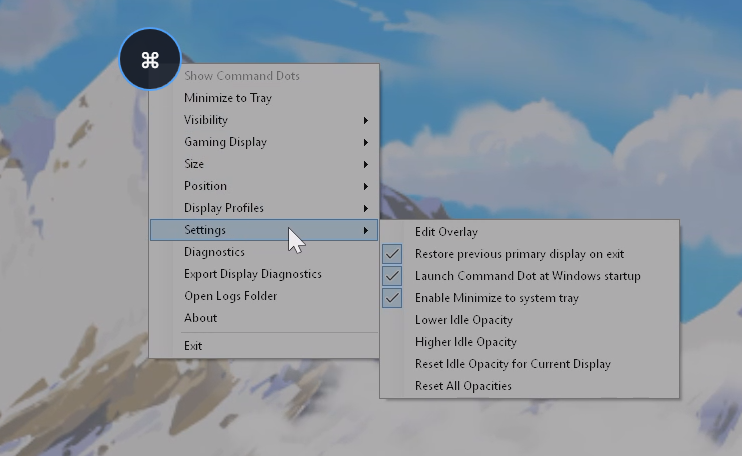
Adjust the Dot's size and opacity independently on every display. Move it wherever it is comfortable, or use Reset Position to return the Dot on that display to its default top-center location. Position and appearance persist per display.
Optional Windows startup and system tray modes
Command Dot can optionally launch when you sign in to Windows. It can also minimize to the notification area, hiding the visible Dots while leaving the utility running so they can be restored from the tray. Both options are off by default.
Command Dot does not automatically switch audio, alter displays, or execute power actions when it starts.
Guarded power controls
Sleep, Restart, and Shut Down are available from the expandable Power section. Multiple confirmation steps and a cancelable countdown help prevent an accidental tap from becoming a system command.
More control from every screen
- Open Start and the taskbar
- Open Task Manager
- Close a window normally or force quit it with confirmation
- Select supported resolution and refresh-rate options
- Toggle HDR where supported by Windows and the display
- Inspect VRR diagnostics exposed through the Windows display stack
- Create, apply, overwrite, duplicate, rename, and delete display profiles
- Build a curated audio-output list and switch devices from any Dot
- Configure an optional global hotkey to cycle selected audio outputs
- Access Sleep, Restart, and Shut Down through confirmations and a cancelable countdown
- Set dot size, opacity, and position independently for each display
- Restore the dot to a predictable top-center position
- Optionally launch Command Dot when signing in to Windows
- Optionally hide and restore all visible Dots through the system tray
Command Dot is designed for multi-monitor desktops, couch gaming, TVs and projectors, touchscreen displays, handheld-style tablet setups, virtual displays, and remote game-streaming systems.
Built because Windows kept losing the controls
Command Dot began as a solution for streaming a gaming PC to a tablet. A virtual display could be working perfectly while Windows opened a game, launcher, or confirmation box on a completely different monitor.
The obvious controls were always on the screen that was no longer accessible.
Command Dot solves that problem by placing the rescue controls on every display.
Walk to another screen. Click the dot. Game Here.
System requirements
- Windows 10 or Windows 11
- 64-bit processor and operating system
- One or more displays recognized by Windows
- Some actions require the permissions normally required by Windows for the target application or system command
Command Dot is distributed as a self-contained 64-bit Windows application. No separate .NET installation is required.
Important notes
- Command Dot does not include Apollo, Artemis, Playnite, Moonlight, Sunshine, or any game-streaming service.
- Command Dot does not stream games by itself. It manages Windows displays and windows and is especially useful alongside streaming and launcher software.
- HDR availability depends on Windows, the graphics driver, the display, and the active connection.
- Auto Tractor Beam is experimental and may not route every application correctly.
- Some elevated or protected windows cannot be controlled by a normally running application.
- Display, HDR, VRR, game-launch, and window behavior can vary by Windows version, GPU driver, monitor, game, and launcher.
- Manual Tractor Beam remains available when automatic window routing does not work with a particular application.
What your purchase includes
- Command Dot for Windows
- Updates published to this itch.io product page
- A downloadable quick-start guide
Support
If Command Dot behaves unexpectedly, include:
- Your Windows version
- Number and type of displays
- Whether a virtual display was active
- What action you selected
- Which application or window was involved
- The steps needed to reproduce the problem
Download
Click download now to get access to the following files:
Development log
- Command Dot v1.3.4 bug fix48 days ago
Leave a comment
Log in with itch.io to leave a comment.